How to Run Magis TV on Any Smart TV
Magis TV has become one of the most talked-about IPTV apps in Latin America. It gives users access to hundreds of live channels, on-demand films, series, sports, and documentaries with HD and 4K playback. But getting the app running on a television takes a few extra steps, depending on the operating system your set uses.
About Magis TV and How It Works on Smart TVs
Magis TV runs on Android-based hardware. It pulls together on-demand shows, real-time broadcasts, news feeds, and sporting events into a single app. Users can record programs with a cloud DVR. Paid plans unlock additional channels and allow viewing on multiple screens at once.
The app has faced copyright-related legal action in several regions. An Argentine court ordered Google to block Magis TV from search results. Anyone considering it should check local regulations before proceeding. If you like reviewing digital tool options for different platforms, the same due diligence applies here.
What Qualifies as a Smart TV for Magis TV?
A smart television connects to the internet and runs its own operating system. It loads streaming apps, mirrors phone screens, and responds to voice commands through assistants like Alexa or Google Assistant. Smart TVs from Samsung use Tizen OS, LG uses webOS, and Sony typically runs Android TV or Google TV.
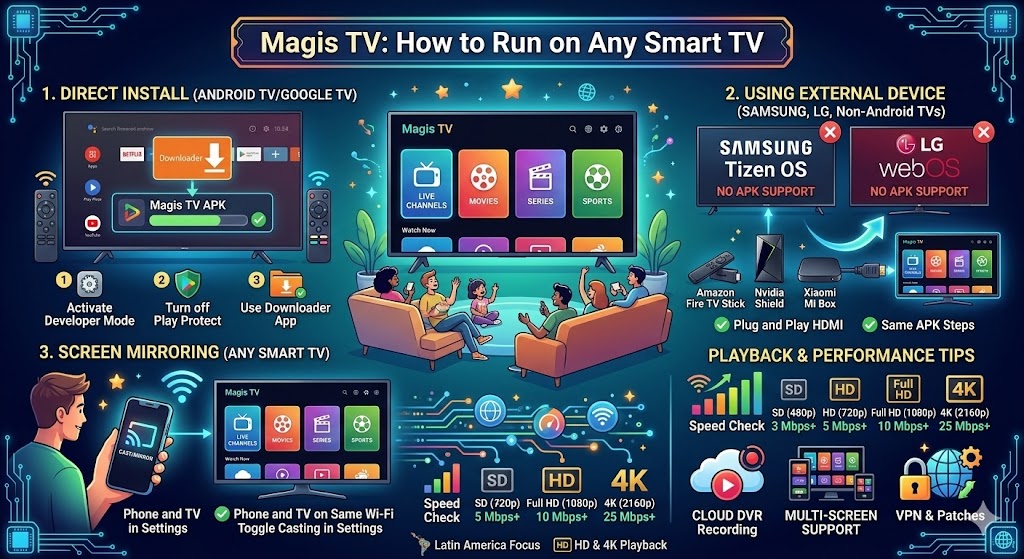
The operating system matters because Magis TV is an Android APK. It installs directly only on Android-based sets. For Tizen or webOS televisions, you need an external device or screen mirroring. Readers interested in how connected gadgets shape daily routines will find smart TVs at the center of that shift.
Smart TV Operating System Market Share (2025)
How to Install Magis TV Directly on Android Smart TVs
If your set runs Android TV or Google TV, you can load Magis TV without any extra hardware. This method uses an APK sideloading approach since the app is not listed on the Google Play Store.
| Step | Action |
|---|---|
| 1 | Open Settings > System > About and tap the build number repeatedly to activate developer mode |
| 2 | Go to the Play Store, open Settings, and switch off Play Protect |
| 3 | Search for and install the Downloader app from the Play Store |
| 4 | Open Downloader, type the Magis TV APK link, and follow the prompts |
| 5 | Launch Magis TV, grant permissions, and start watching |
Running Magis TV on Samsung, LG, or Other Non-Android TVs
Samsung, LG, and other non-Android televisions cannot load APK files natively. An external device solves this. Popular choices include the Amazon Fire TV Stick, Nvidia Shield, and Xiaomi Mi Box. Plug the device into your HDMI port, install the Downloader app, and follow the same APK download steps above.
For those managing multiple digital tools across different devices, this method keeps the process straightforward. You handle Magis TV on the external device rather than altering your television’s firmware.
Using Screen Mirroring to Watch Magis TV on Any Smart TV
Prefer zero app installs on the TV itself? Mirror your phone screen instead.
| Step | Action |
|---|---|
| 1 | Connect your phone and television to the same Wi-Fi network |
| 2 | Turn on screen mirroring or casting mode through your TV settings |
| 3 | Open Magis TV on your phone, tap the cast icon, and pick your TV |
Screen mirroring works on virtually any smart TV from any brand. The tradeoff is that your phone stays occupied while casting. Battery drain runs higher during extended viewing sessions.
Magis TV Playback Tips for Smart TVs
A stable connection of at least 10 Mbps prevents buffering during HD streams. For 4K content, 25 Mbps or faster is recommended. Lowering the resolution setting inside the app can help on slower networks. Keep both the app and device firmware updated to avoid crashes.
A VPN may be useful for bypassing regional content blocks. If you enjoy keeping up with new digital platforms, staying current on app versions and compatibility patches is a good habit.
Recommended Internet Speed by Streaming Quality
Magis TV Free vs Paid Plans
Magis TV offers a no-cost tier with limited channel access. The paid subscription opens the full library, including premium sports and multi-screen support. Pricing varies by region, and some resellers offer annual packages.
| Feature | Free Plan | Paid Plan |
|---|---|---|
| Live channels | Limited selection | Full access (1,300+) |
| On-demand content | Partial | 50,000+ titles |
| Streaming quality | Up to HD | HD and 4K |
| Multi-screen viewing | No | Yes |
| Cloud DVR | No | Yes |
Is Magis TV Legal to Use on Smart TVs?
Magis TV has drawn scrutiny for distributing copyrighted material without proper authorization. Courts in Argentina have taken action against the service. Google received a judicial order to block the app from its platforms in that country.
Users are responsible for complying with copyright regulations in their own jurisdiction. Laws around IPTV services differ widely from country to country. Always research a platform’s legal standing before committing time or payment.
FAQs
Can I install Magis TV directly on a Samsung Smart TV?
No. Samsung TVs run Tizen OS, which does not support Android APKs. Use an external device like a Fire TV Stick or mirror from your phone.
What internet speed do I need for Magis TV on a smart TV?
At least 10 Mbps for HD streaming. For 4K content, 25 Mbps or higher is recommended to avoid buffering.
Is Magis TV free to use?
A free tier exists with limited channels. The paid plan unlocks the full library, 4K streaming, multi-screen support, and cloud DVR.
Does Magis TV work on LG webOS Smart TVs?
Not directly. LG webOS does not support APK files. Use an HDMI-connected Android streaming device or screen mirroring instead.
Is it legal to use Magis TV?
Magis TV has faced copyright enforcement in several countries. Users should verify local IPTV regulations before using the service.